Free YouTube Bitrate Calculator - Optimal Upload Settings
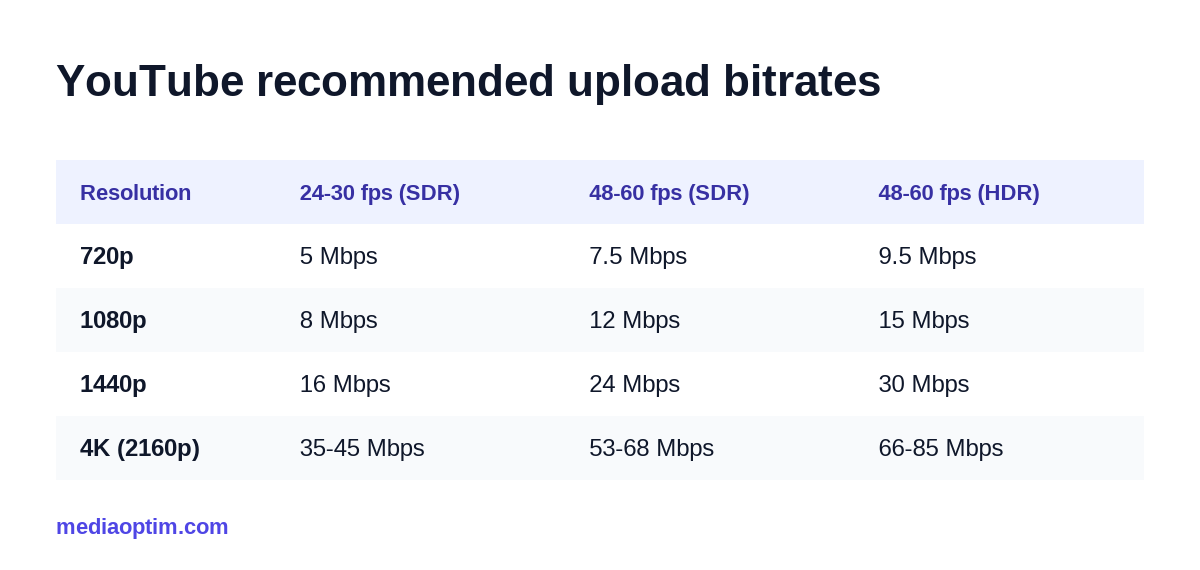
YouTube recommends 8 Mbps for 1080p at 30 fps, 12 Mbps at 60 fps and 35-45 Mbps for 4K. Uploading at or slightly above these bitrates gives YouTube’s encoder enough detail to work with, while going far above them only makes the upload slower without making the final stream look better.
YouTube recommended upload bitrates
| Resolution | 24-30 fps (SDR) | 48-60 fps (SDR) | 48-60 fps (HDR) |
|---|---|---|---|
| 720p | 5 Mbps | 7.5 Mbps | 9.5 Mbps |
| 1080p | 8 Mbps | 12 Mbps | 15 Mbps |
| 1440p | 16 Mbps | 24 Mbps | 30 Mbps |
| 4K (2160p) | 35-45 Mbps | 53-68 Mbps | 66-85 Mbps |
Calculate Video Bitrate
Find the bitrate needed for your target size
Why upload bitrate matters on YouTube
YouTube re-encodes every video into its own streaming versions, so your file is the raw material, not what viewers see. A low-bitrate upload already has blocky shadows and smeared motion, and YouTube compresses it again on top. Exporting at the recommended bitrate (or using constant quality around CRF 18 in H.264) keeps the second compression pass clean. Audio should be AAC at 384 kbps for stereo.
Frequently Asked Questions
What bitrate should I use for YouTube 1080p?
8 Mbps for 24-30 fps and 12 Mbps for 48-60 fps in SDR. For HDR at 60 fps, YouTube recommends 15 Mbps.
Does a higher bitrate make YouTube videos look better?
Up to a point. Bitrates around the recommended values give YouTube clean source material. Doubling them adds upload time and storage but rarely makes a visible difference after YouTube re-encodes the video.
More video bitrate calculator guides
Need More Power?
Compress videos, photos & audio. HEVC, WebP, AVIF, FLAC support.
$14.99 one-time
Get MediaOptim for MacFree Up Phone Storage
Compress photos & videos directly on iOS and Android.
$4.99 one-time
Get MediaOptim MobileAlso available on mobile
Free Up Your iPhone & Android Storage
Compress on-device. No uploads. No subscriptions.