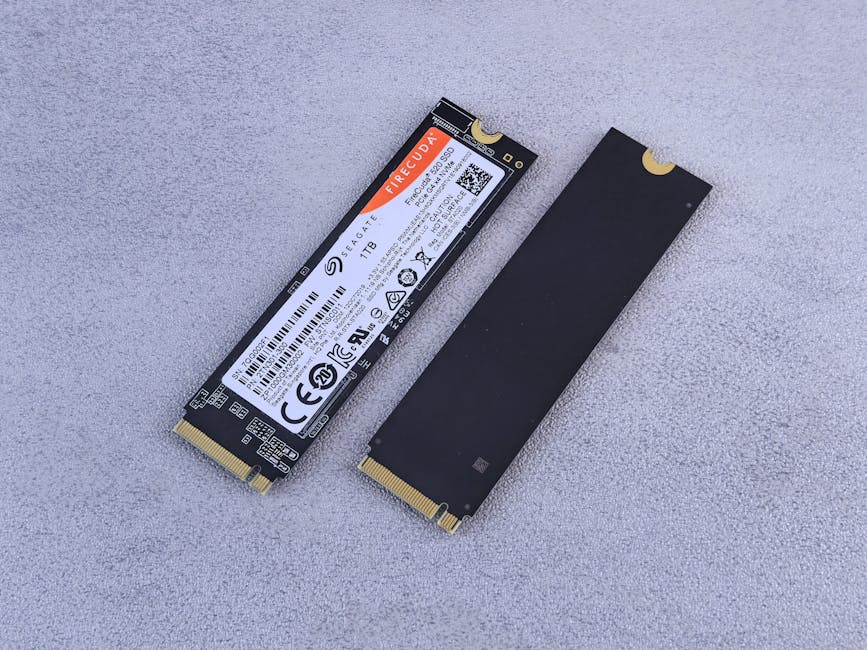
The hard truth: If you have a Mac with Apple Silicon (M1, M2, M3, M4) or any MacBook made after 2019, the storage is soldered to the motherboard. You cannot upgrade it. This page covers what you can and can't do — and what actually works instead.
MacBook Storage Upgrade: What's Possible in 2025
For most modern Macs, the answer is no — you can't upgrade internal storage. But depending on your model, you might have options. And if you don't, there are better alternatives than buying a new Mac.
Can You Upgrade Storage? Check Your Model
| Mac Model | Upgradeable? | Notes |
|---|---|---|
| MacBook Air (2022 and later, M-series) | No | Storage soldered to logic board. No upgrade possible after purchase. |
| MacBook Pro (2019 and later, M-series) | No | Storage soldered to logic board. No upgrade possible after purchase. |
| MacBook Pro (2013–2015) | Yes | Proprietary Apple SSD. Third-party options available from OWC. ~$150–400. |
| MacBook Pro (2016–2018) | No | T2 chip locks the SSD. Not practically upgradeable. |
| Mac mini (2018) | No | Soldered. No upgrade. |
| Mac mini (2020 M1 and later) | No | Soldered. No upgrade. |
| Mac Pro (2019) | Yes | Standard PCIe SSD slots. Fully upgradeable. |
| iMac (2012–2019) | Yes | HDD/Fusion Drive models can be upgraded to SSD. Complex disassembly. |
To find your Mac model: Apple Menu → About This Mac.
If Your Mac CAN Be Upgraded
MacBook Pro 2013–2015
OWC (Other World Computing) sells compatible SSDs for these models. Prices range from $150 for 480 GB to $400 for 2 TB. The installation requires a Torx T5/T6 screwdriver and about 30 minutes. OWC provides detailed guides and a migration kit.
Mac Pro 2019
Uses standard PCIe NVMe SSDs in Apple's proprietary form factor. Apple Authorized Service Providers can upgrade these. Expect $200–600 for the storage, plus labor.
iMac HDD/Fusion Drive models
Replacing the hard drive with an SSD massively improves performance AND capacity. Requires suction cups and care around the display adhesive. Best left to a professional unless you're comfortable with hardware.
If Your Mac CAN'T Be Upgraded (Most Modern Macs)
You have three practical paths:
1. Compress your existing files (recommended first step)
Most Macs are full because of uncompressed videos and photos, not because they genuinely need more space. Compressing your media library can recover 40–70% of storage. A $8.99 app like MediaOptim costs less than a single month of extra iCloud and works entirely offline.
2. Add an external SSD
A USB-C external SSD (Samsung T7, WD My Passport) gives you 1–4 TB for $50–150. Fast enough for most file access and editing. Move your Photos library or large project folders there.
3. Offload to iCloud or another cloud
iCloud, Google Drive, or Dropbox can hold files you need occasionally but don't need locally. Works best with reliable internet. Watch out for ongoing subscription costs.
Is It Worth Buying a New Mac for More Storage?
Usually not. A 256 GB MacBook Air M3 costs $1,099. Upgrading to 512 GB at purchase adds $200. By comparison, compressing your existing files costs $8.99 and often recovers 60–100 GB on its own.
The one case where buying new makes sense: you're consistently maxing out 512 GB or more and your current Mac is 4+ years old. In that case, the upgrade to a 1 TB or 2 TB model is worth it — but buy the storage you actually need upfront, since you won't be able to add it later.