Quick answer: You can't add more internal storage to a modern Mac after purchase. But you can effectively get more usable space by compressing existing files (40–70% recovered), offloading to iCloud, or adding an external drive.
How to Get More Storage on Mac
Modern Macs have soldered-in storage — you can't swap the SSD like you could 10 years ago. But you have 6 real options, and most people only know about one or two of them.
Compress your files (best ROI)
Videos, photos, and audio files contain massive amounts of redundant data. A 1-minute 4K video from your iPhone is 400 MB. Compressed, it's 40–60 MB with no visible quality loss. This is the highest-impact option for most people because it works on the files already taking up space — without deleting or moving anything.
Offload to iCloud
Apple's "Optimize Mac Storage" moves files you haven't opened recently to iCloud, freeing local space. Files download automatically when you open them. Works well if you have reliable internet. Costs add up over time — $9.99/month is $120/year.
Add an external drive
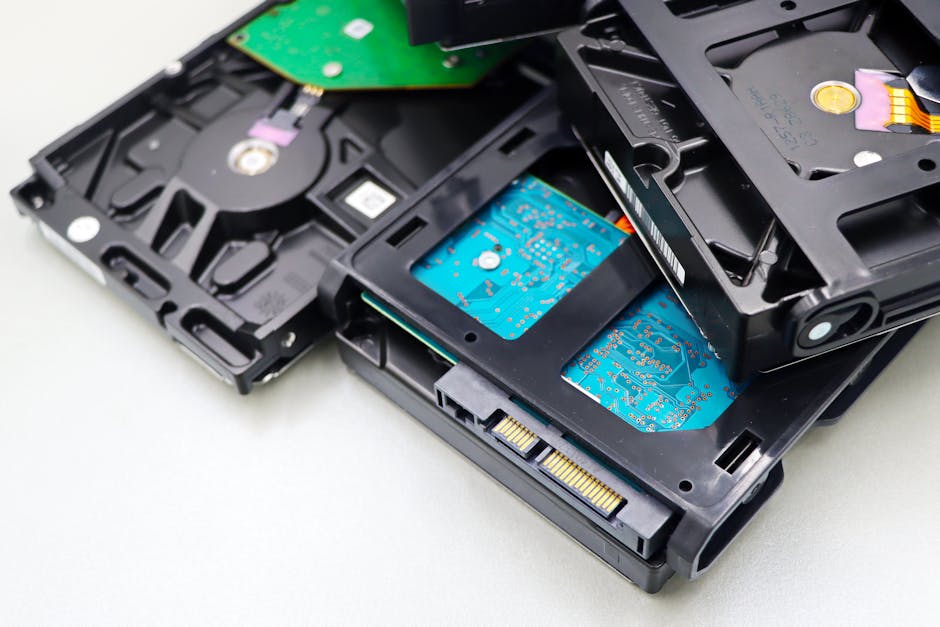
Move your Photos library, video projects, or archive folders to an external SSD. Modern USB-C SSDs are fast enough for editing and cost $50–150 for 1 TB. The downside: you need the drive plugged in to access those files.
Delete what you don't need
Old iPhone backups (3–10 GB each), forgotten downloads, duplicate files, and old app caches. Before spending money, do a quick audit. System Settings → General → Storage → Storage Settings shows your biggest files.
Use a NAS or home server
A NAS (Network Attached Storage) gives you terabytes of storage on your home network. Files are accessible wirelessly from your Mac — no drive to plug in. Overkill for most users, but ideal if you have a large media library or work from home.
Switch cloud provider
Google One (100 GB for $1.99/month), Dropbox, or Backblaze offer more storage per dollar than iCloud. If you're already paying for cloud storage, switching providers can double your capacity for the same price.